CONNECT HARK
API KEYAbout 2 minutes · Free iPhone app
Hark plans your lifting. Tally logs every set.
Hark reads your training history. With a Read and plan key, it also writes planned workouts to the Tally app. With a Full access key, it can also log, change or delete finished workouts when you ask. You can undo each change for 7 days.
- 01
Get Tally and create a key
In Tally, open Settings → API keys → Create key. Pick Hark. Pick Read only, Read and plan so Hark can add workouts, or Full access so it can also log, change or delete finished workouts. You can undo each change for 7 days. Copy the key. Tally shows it once.
Download on the App Store Scan with your iPhone camera to open Tally on the App Store.
 - 02
In Hark, say: “Connect Tally with an API token.”
- 03
When Hark asks for the server, give it the server URL.
https://mcp.tallyworkout.app/api/mcp - 04
When Hark asks for the token, paste the key.
- 05
Ask for your week
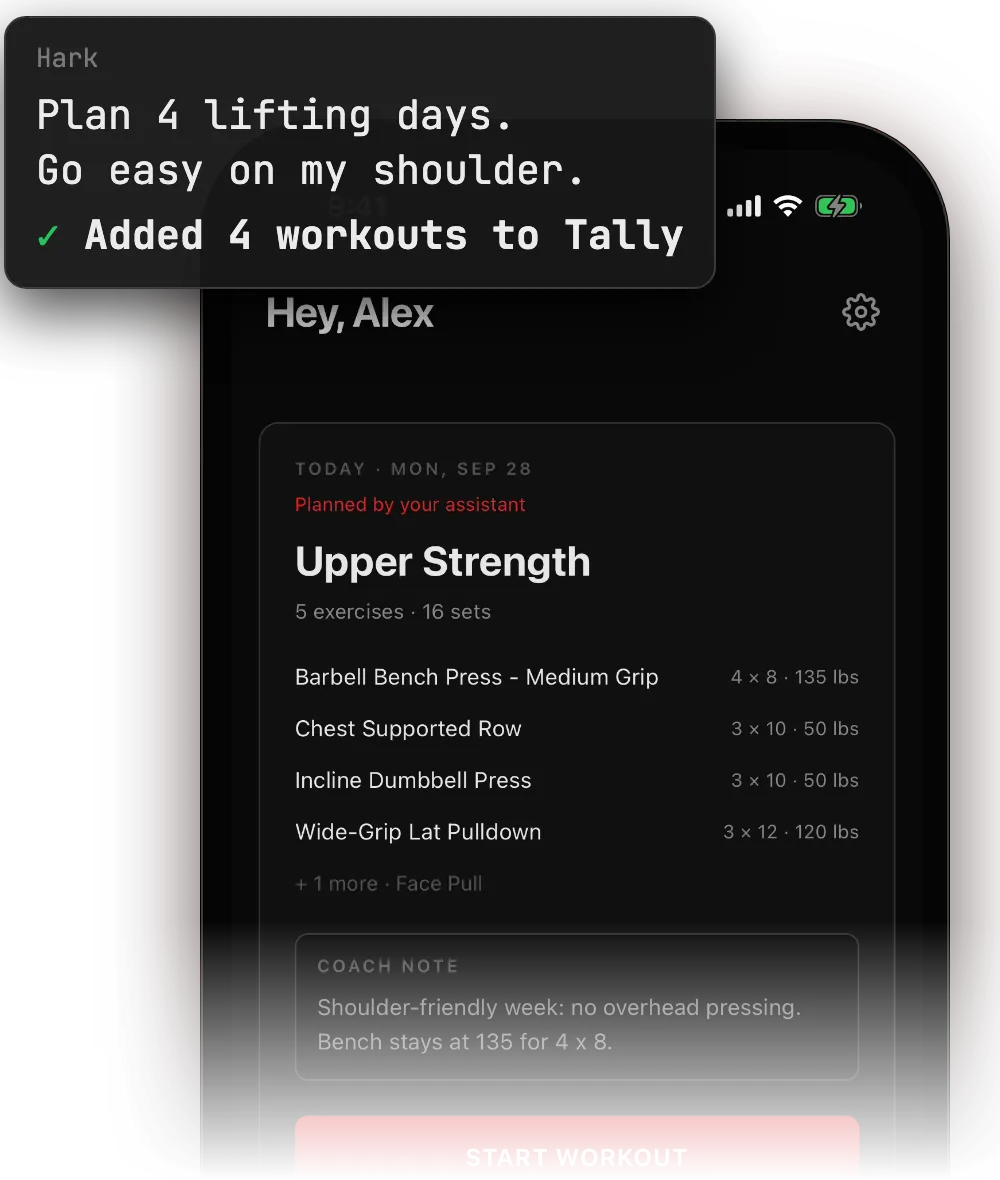
Plan 4 lifting days for next week. Go easy on my shoulder.
What Hark can do
- Read your training history, progress and planned days
- With a Read and plan key: plan, change, move or skip planned days
- With a Full access key: log, change or delete finished workouts. You can undo each change for 7 days.
If something goes wrong
- Hark cannot add workouts.
- The key is Read only. Create a new key and pick Read and plan.
- The key does not work.
- Copy the whole key. If you lost it, revoke it in Settings → API keys and create a new one. Tally shows a key only once.
- The server address does not work.
- Use https://mcp.tallyworkout.app/api/mcp. The address tallyworkout.app is the website, not the API.
- Steps not working?
- Email support@tallyworkout.app.